Integration guide
How to Post an Instagram Carousel in 2026
Ryze AI · Updated
Posting a carousel on Instagram means uploading 2 to 10 images or videos as one swipeable post, either from the mobile app or from Meta Business Suite, and the format only holds together if every slide matches the same aspect ratio before you tap Next. Fix the export and upload order once and each carousel after that takes under five minutes to post correctly the first time, instead of the usual re-upload-and-reorder loop that eats twenty minutes per post.
- Instagram carousels support 2 to 10 photo or video slides per post in 2026, and slides can mix photos with video.
- Post directly from the Instagram app for speed, or use Meta Business Suite when you need to schedule ahead.
- Every slide must share one aspect ratio before upload — Instagram crops the rest of the carousel to match slide one, with no warning.
- Slide order locks after you tap Share; there is no in-app reorder after publishing, only delete and re-upload.
- Design the carousel first, then post it — a swipe-worthy structure and a correct upload sequence solve two different problems.
Why this matters
Carousels get more saves per view than single-image posts because swiping through slides is itself a signal Instagram's ranking system reads as sustained interest, not a passive scroll-past. That's the whole reason how to post a carousel on Instagram correctly matters in 2026: a well-built carousel that uploads in the wrong order, the wrong ratio, or with the wrong slide as cover loses the swipe momentum a good sequence depends on.
Design and posting mechanics are two separate jobs. If you haven't built the slides yet, this guide to making an Instagram carousel that gets swipes covers the hook-slide, structure, and pacing questions. What follows here is the mechanical part: uploading, ordering, captioning, and scheduling a carousel in 2026, plus fixes for the posting errors that show up most often.
Before you start
- A Professional account (Creator or Business) if you want per-slide swipe data — personal accounts can post carousels but get none of the slide-by-slide analytics.
- Every slide exported at one aspect ratio — 1:1, 4:5, or 9:16. Mixing ratios inside a single carousel is the single most common setup mistake, and Instagram won't flag it before cropping slide two through ten to match slide one.
- Caption and hashtags drafted before you start the upload — the mobile app doesn't reliably save carousel drafts if you back out mid-upload to check a caption idea, and you can lose your slide order doing it.
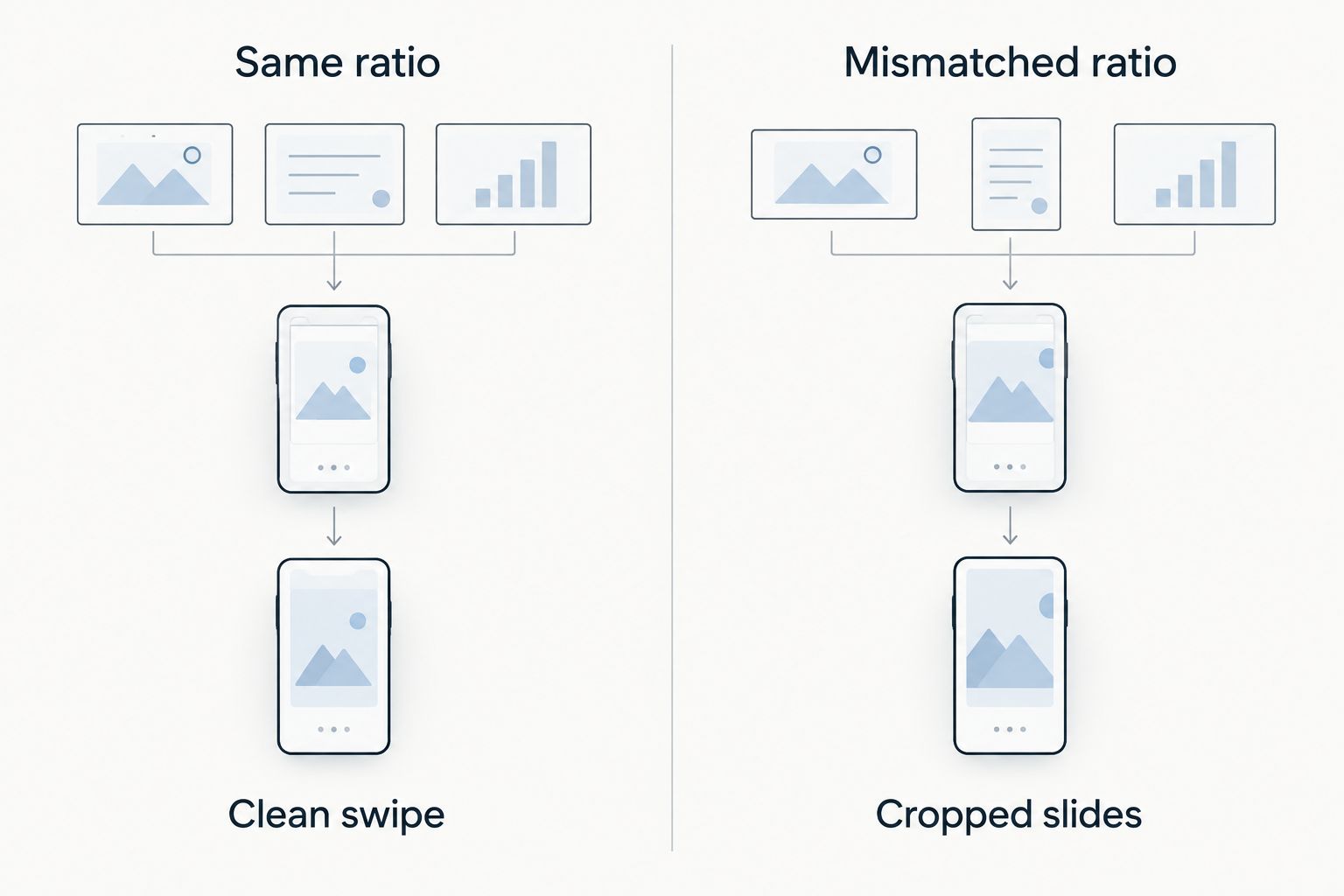
Set up your carousel files and aspect ratio
- Export every slide at the same pixel dimensions. Pick one ratio for the whole set — 1080x1350 (4:5) is the standard choice for 2026 because it fills more of the feed than square without clipping on most devices.
- Name files in posting order (01, 02, 03...) so you're not hunting for slide five in a folder of forty images when you upload.
- Export video slides separately from image slides if your carousel mixes formats — check that video slides run under Instagram's per-slide length limit before moving on; oversized files are the top cause of stalled uploads.
Expected result: a folder of correctly numbered, identically sized files ready to select as a batch — no resizing or cropping decisions left for the upload screen.
Upload your carousel in the Instagram app
- Tap the + icon at the top of your feed, then tap Post.
- Tap the Select Multiple icon (the stacked-squares icon in the corner of the media picker) to switch from single-photo mode to carousel mode.
- Tap each file in your desired order — Instagram numbers them as you tap, so tap in the exact sequence you exported.
- Tap Next.
Expected result: a preview screen showing your slides in a numbered strip at the bottom, with slide 1 of X displayed at the top.

Order, caption and tag your slides
- If a slide is out of order, tap and hold its thumbnail in the numbered strip and drag it into place before tapping Next again.
- On the edit screen, tap each slide individually to apply filters or trims — edits made here apply per-slide, not to the whole carousel at once.
- Tap Next, then write your caption in the Write a caption field.
- Use Tag People and Add Location if relevant, then tap Edit Cover if you want a slide other than slide one shown as the thumbnail in the grid.
- Tap Share.
Expected result: your carousel is live with a dotted swipe indicator under the image and a slide counter (1/X) in the top corner.
Post a carousel from Meta Business Suite or a scheduler
Do this whenever you're planning content in advance rather than posting in the moment — the setup differs slightly but the file prep from earlier steps stays the same.
- Open Meta Business Suite and select Create Post.
- Choose your Instagram account, then click Add Photo/Video and select all your carousel files at once — Meta Business Suite still caps the set at 10 slides.
- Drag thumbnails in the preview panel to fix ordering, since Business Suite doesn't always upload in file-selection order.
- Write the caption in the post composer, then click Schedule instead of Publish and set your date and time.
Expected result: the carousel appears in your Scheduled Posts queue and publishes automatically at the set time, in the slide order shown in the preview panel — confirm that order before scheduling, since Business Suite won't let you reorder after it's queued.
Skip the blank-page problem before you export
Turn a rough idea or a proven Reel into carousel slides ready to upload.
Troubleshooting Instagram carousel posting problems
- Slides published in the wrong order. There's no in-app fix once it's live — delete the post and re-upload with the correct sequence. Double-check the preview strip next time before tapping Share.
- Upload stuck on "Uploading..." indefinitely. Usually a file size or codec issue on a video slide. Re-export the video at a standard export setting and retry on wifi rather than mobile data.
- Aspect ratio crops key content out of a slide. Re-export every slide to match slide one's exact ratio, not just close to it — Instagram doesn't average ratios across a carousel, it locks to the first slide.
- Video slide loses audio after posting. This happens with unsupported audio codecs on export. Re-export the video slide in a standard .mp4 format and re-upload.
- Carousel cross-posts to Facebook with the wrong cover. Check the cross-post toggle and cover selection separately for each platform before you tap Share — Instagram and Facebook don't always inherit the same Edit Cover choice.
Customize your carousel workflow
Once posting mechanics are solid, the bottleneck moves upstream to what goes on each slide and how you know a carousel worked. Two things worth building into a regular workflow in 2026:
- Pair carousels with Reels from the same idea. A script that works as a Reel voiceover often restructures cleanly into carousel slides — see the roundup of AI Reels script generators for creators if you're producing both formats from one idea regularly.
- Check swipe-through and save rate after each post, not just likes. The guide to analyzing Instagram Reels metrics covers the diagnosis framework, and the same save-rate logic applies to carousels: a high save rate with a low swipe-through means your hook slide works but slide two doesn't earn the next swipe.
FAQ
How many slides can an Instagram carousel have in 2026?
An Instagram carousel supports 2 to 10 images or videos per post in 2026. You can mix photo and video slides within the same carousel.
Can you reorder carousel slides after posting?
No. Once a carousel is published, the slide order is locked. The only fix is deleting the post and re-uploading in the correct order.
What aspect ratio should I use for an Instagram carousel?
Pick one ratio for every slide — 1:1, 4:5, or 9:16 — before exporting. 4:5 (1080x1350) is the most common choice in 2026 because it takes up more feed space than square without clipping.
Why does my carousel only show one aspect ratio for all slides?
Instagram locks the whole carousel to the aspect ratio of slide one. Any slide exported at a different ratio gets cropped to match, which is why matching ratios before upload matters more than fixing it after.
Can you schedule an Instagram carousel in advance?
Yes, through Meta Business Suite. Upload all slides, set the order in the preview panel, then choose Schedule instead of Publish and set a date and time.
Does Instagram show analytics for each carousel slide?
Yes, but only for Professional (Creator or Business) accounts. Personal accounts can post carousels but don't get per-slide swipe or reach data.
Why did my carousel upload freeze or fail?
The most common cause is an oversized or incorrectly coded video slide. Re-export the video slide in a standard format and retry the upload on wifi.
Should a carousel's cover slide always be slide one?
No, use Edit Cover during upload to pick whichever slide works best as a thumbnail in the grid. It doesn't have to be the first slide the viewer swipes to.
One last thing
Slide one is the only slide Instagram guarantees gets seen by everyone who scrolls past your post — slides two through ten only get viewed by people who actually swipe. Treat the first slide as the entire pitch, not a title card, and never push your actual value proposition past slide three: by then, most of your non-swiping audience is already gone.